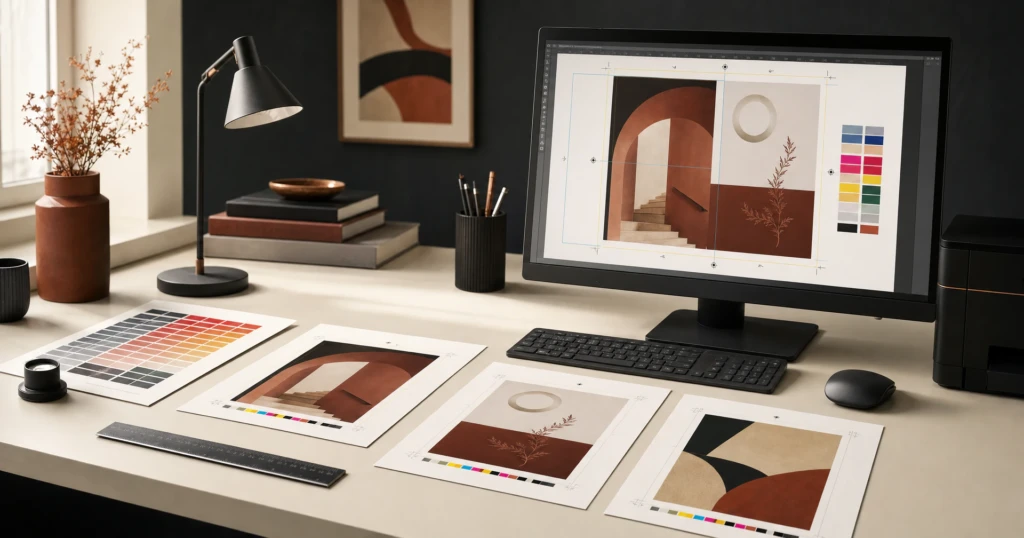
Every printed piece starts as a file, and that file decides how the finished piece looks. Whether it is business cards for a new hire or a fundraiser banner in Grand Cayman, this guide explains how to prepare artwork for printing with Creative Exposure: why each rule exists, how to check it and where files most often go wrong.
Good artwork also protects your date. Turnaround is 6 to 10 business days from artwork approval, so every round of fixes pushes the start of that clock back.
Start with the finished size
Build your document at the finished size of the piece. Paper products have set sizes: business cards are 3.5 by 2 in, and a business card template is available to start from. For large format items such as the 13oz Vinyl Banner, you enter your size in feet and inches on the product page, and the artwork is built to that same size.
How to check: confirm your document units are inches and compare the width, height and shape with your order. If the proportions do not match, the design ends up cropped, stretched or padded with empty bands.
Common mistake: reusing a square social media graphic for a long, narrow banner.
Bleed, trim and safe areas
The edge rule depends on the product family, and the artwork setup notes on each product page show which one applies.
Paper products: add bleed
For business cards, flyers and other paper products, “Artwork requires a 0.125 in bleed on all sides.” Backgrounds, photos and shapes that touch the edge should run past it, because paper is trimmed after printing and bleed stops a tiny shift from leaving a white sliver. A 3.5 by 2 in card is therefore set up at 3.75 by 2.25 in.
Large format without a template: no bleed
Banners, rigid signs, vehicle magnets and window graphics without a template follow the opposite rule: “No crop marks. No bleed.” Build the file at exactly the size you ordered, so its edge is the edge of the piece.
Products with a template: follow the guide
Flags, several trade show and event pieces, two of the banner stands and paper items such as brochures have templates on the Artwork Templates page. For large format items with a template, the rule is “Follow the template guide.” Download the template for your exact product, size and print configuration, never resize or move its guides, and follow its instructions before you export. A feather flag is not a rectangle, and its template shows the real shape.
Safe areas
On paper products, “Keep text, logos and any critical design elements safely inside the trim area so nothing important is cut off.” On large format, keep those elements away from the outer edge so nothing important sits on the trim.
Common mistake: a thin border hugging the edge, where the smallest trimming shift makes one side look wider than the other.
Resolution: vector, raster and web graphics
- Raster images, such as photographs, are a fixed grid of pixels. Enlarge one and its edges turn soft or blocky, and saving it again at a higher setting cannot restore what the original never captured.
- Vector artwork stores shapes and lettering as paths, so logos and text stay crisp at any size. Ask whoever designed your logo for a vector version, usually a PDF or EPS.
How to check: print cards, flyers and other small pieces at actual size on an office printer and inspect every photo and logo. Fuzzy or stepped edges there will show on the finished piece too. Large format is harder to judge on screen, so send the file with its finished dimensions and we will check whether the resolution holds at that size.
Why web graphics and screenshots let you down
Logos saved from websites, social media profile pictures, screenshots and images forwarded through messaging apps are made for screens, so they are small and compressed. Placing one in a PDF does not help: a low resolution image prints exactly as it is. When a photo arrives by messaging app, ask for it as a document so it is not shrunk.
Working from an old logo file, or one made by a designer you can no longer reach? Send the best version you have and say so. We will tell you plainly whether it will hold up at the size you need.
CMYK and realistic colour expectations
Screens mix colour from red, green and blue light (RGB). Full colour print uses four process inks, cyan, magenta, yellow and black (CMYK), which is the 4 in a business card option such as 4/4 Full Color Both Sides. Ink cannot reach every bright screen colour.
Cayman branding often leans on the colours that travel least well from screen to ink: glowing turquoise, neon green and hot pink. Convert to CMYK early to see the shift while you can still adjust.
Material matters too: the same artwork looks richer on gloss, softer on uncoated card and different again on vinyl or fabric. Our guide to business card stocks and finishes, from matte and gloss to spot UV covers the card options.
Common mistake: judging colour on a phone at full brightness. If a brand colour matters, use the same CMYK values in every file and point it out when you order or request a quote. Expect a close family resemblance rather than an identical match, because card, vinyl and fabric each take ink differently.
Fonts, spelling and contact details
Fonts
Embed your fonts when you export, or convert text to outlines and keep an editable copy, since outlined text cannot be changed. A missing font is swapped for another, and lines can reflow or drop out. To check, open the PDF’s document properties, which list every font and show whether it is embedded.
Spelling and proofing
Proof the exported PDF rather than the working file, ideally printed at actual size, and ask someone fresh to read it. Names, job titles, dates, prices and district names, from West Bay to Bodden Town, are the details people skim past.
Our check looks for problems that will show in print, such as low resolution, missing bleed or text too close to a trim or a fold. We do not change your file without asking, so a typo in the PDF becomes a typo on the piece.
Contact information
People act on contact details, so test every one: dial each number with its 345 area code, email each address, open each web address and search each social handle. Scan any QR code at final size with two different phones. On team business cards, check each person’s card separately.
Exporting a print-ready PDF
Artwork files must be supplied as PDF. JPG and PNG files are accepted only for memorial photographs and reference images.
- Flat products: “Upload your artwork as a single-page PDF.”
- Catalogs and other multi-page products: “Upload your artwork as one multi-page PDF, with the pages in order.”
- Two-sided products: “Front and back artwork must be uploaded as separate files.”
For paper products, check that the export includes the bleed, since some programs leave it out unless you tick that option. For large format without a template, leave crop marks and bleed off. Choose a high quality print preset rather than a smallest file size one, which quietly shrinks your photos.
Open the exported PDF for a final look, because that file is what goes into production.
Get help with your artwork from Creative Exposure
Upload your artwork when you order or when you request a quote, or email it to sales@creative.ky. If your files are not ready, place the order and send them afterwards. Production starts once artwork is approved.
If you need help preparing your artwork, please contact us before ordering. Not sure a file will work? Ask us to check it first. No artwork yet? Request a quote and tell us what you need; design work is scoped and quoted with the print.
When your file is ready, order from the Print Shop (Large Format & Signage in the menu) or Paper, Labels & Packaging. To have a file looked at first, request a quote with your artwork attached or ask us about your file on WhatsApp. Working to a tight date? Rush work may be available. Please WhatsApp or email us to confirm availability. We deliver across Grand Cayman.